Thursday, November 25th, 2010
While many are up in arms now about the decision to remove Drive Extender from SBS 2011 Essentials, and Windows Home Server Codenamed “Vail”, it’s great to see that some can still have a laugh at things. Tim Barrett has taken the trophy today with his carton on the topic.
Personally I think the Windows Home Server product is the big one affected here. I really would have liked to see the Drive Extender technology in SBS 2011 Essentials as well, but I’m not overly worried about that. What concerns me more though is the amount of development effort Microsoft has put into it that is now effectively wasted and how that effort could have been better used in other areas on the SBS product range…
Tags: Future Products, SBS 2008 R2, SBS 2011, SBS 2011 Essentials
Posted in Blog | 1 Comment »
Wednesday, November 24th, 2010
Sadly, today Microsoft announced that they would be ceasing development of the Drive Extender feature that was to be part of SBS 2011 Essentials and the new Windows Home Server version. No – Microsoft are NOT cancelling SBS 2001 Essentials OR Windows Home Server, but they are removing what I consider to be a key feature to those products. They announced it today here on their blog.
Why would they do this? Honestly – only Microsoft know. What I know is that I’m disappointed that the feature is gone, particularly from the Home Server product as this was a very cool way to easily expand your drive storage pools without needing to have drives all of the same size. From what I saw, it worked pretty darn well in Windows Home Server v1 – sure there was a hiccup with storing certain types of data on it, but for music, videos and photos it seemed to work pretty well indeed.
What do we do now? Well – we do what we have always done. We use either Software RAID built into Windows Server that underlies all of this (yuck) or Hardware RAID to give us the protection we need for our drives.
I know that a few of my fellow MVPs were told of this recently and sworn to secrecy under our NDA, and we honestly were dumbstruck as to the fact it had been cancelled. I can only assume that the powers that be at Microsoft know what they are truly doing by removing this feature. On the flip side however, it means that any server backup or antivirus product that worked with Windows Server 2008 R2 will now most certainly work with SBS 2011 Essentials without modification! See – there is a silver lining there somewhere ![]()
Tags: Future Products, SBS 2011, SBS 2011 Essentials, SBS Aurora, Vail, Windows Home Server
Posted in Blog | 6 Comments »
Tuesday, November 23rd, 2010
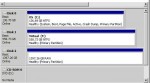
I want to take a moment to say thank you to Linus from BackupAssist. Linus is not only the CEO of the company, but also the lead architect in their software and a really nice guy. One of Correct Solutions customers suddenly had a very strange issue with their Hyper-V server. Backup was being done using BackupAssist on the Hyper-V host and the customer was changing the USB drive on a daily basis. Recently however something went wrong and when the customer changed the drive, it was not automatically being assigned a drive letter anymore. The drive would always come up as RAW in disk manager (see Disk 2 below) and this caused backup to fail.
One of our techs found a fix was to manually assign a drive letter to the drive. Ok – that worked until the drive was changed again and it then failed with the next drive. We tried many things to investigate what the cause was. In the end we contacted Linus from BackupAssist. He turned his brains to the problem and found the solution. Read about it here.
Thanks Linus – really appreciate the effort you put into this – particularly considering it was no fault to your own product.
Tags: Backup, BackupAssist
Posted in Blog | 1 Comment »
Tuesday, November 23rd, 2010
SBS 2008 uses the inbuilt Windows Server Backup under the covers of their wizards. This backup is a block level backup that stores it’s information as a VHD file on the destination disk no matter if it’s on a USB hard drive or a remote drive share. The SBS team have placed a wizard over the top of this for configuration, but essentially under the covers, it’s just Windows Server Backup. Other vendors such as BackupAssist have also done a great job to make it easier to use the inbuilt Windows Server Backup.
When the SBS 2008 / Windows Server Backup runs for the first time, it backs up each logical drive on the server to a separate VHD file on the destination media (in SBS this will be a server connected USB hard drive). The first backup of any logical drive is a full backup where each block is effectively copied over to the VHD file. The next backup to the same destination media includes just the incremental blocks that have changed since the full backup. Subsequent backups are only of the changes since the last backup. All of these blocks/changes are stored within the VHD file for that logical disk.
Ok – so here’s the rub. VHD files are limited in size to 2TB. That means that the 2TB VHD that is your destination VHD for any given volume can only contain the base image and changes up to 2TB in total. That’s pretty much like saying you have a 2TB tape and that’s all you can fit onto it. Once the VHD is full, there is NO OPTION to backup anything more as SBS 2008 / Windows Server Backup only allows FULL VOLUME backups. There is a process that will kill older snapshots from within the target VHD, but there is no way to determine exactly what will be in any given backup in advance (ie no way you can guarantee that the backup from Monday 2 weeks ago will be on that hard drive).
In Windows Server 2008 R2 and therefore SBSv7 and SBS Aurora, things change a little. Windows Server 2008 R2 backup has both a block level engine and a file level engine in it. If the source drive is a 2TB drive then it will automatically switch to file level backup to back it up. Files will be sent into the target backup device (VHD) until that device reaches 2TB. At that point it will attempt to prune some older backups. However the destination backup device is still limited to 2TB in total.
What this all means is that if you are using the standard backup engine in Windows Server 2008, then you are limited to 2TB for your backup devices. It does not matter that you might have a 3TB Hard drive, you simply cannot backup that much data. Ok – so how do we solve this problem? The only solution is to use third party products such as StorageCraft ShadowProtect. ShadowProtect does not have this 2TB limit as it stores it’s files in it’s own file format and also compresses the data that is being backed up. If you are designing servers that have more than 2TB in a single volume then you will want to think carefully about this aspect of your design. The standard Windows or SBS backup won’t cut it at all and will leave you without a solution.
Microsoft for their part do not yet have a solution for this problem. Given they based the destination file format on the VHD format, they have not as yet released any indication of when they will have the ability to extend the VHDs beyond the 2TB limit that they currently have. You have been warned.
Tags: Backup, SBS 2008, SBS 2008 R2, SBS Aurora, SBSv7
Posted in Blog | 2 Comments »
Wednesday, November 17th, 2010
With the announcement of SBS 2011 recently, many resellers are looking forward and planning future sales for their clients. One of the key questions that comes up is around migration to SBS 2011 in both versions. Currently there are a few methods to get to SBS 2011. Your choices are using the Microsoft Whitepaper method, Jeff Middleton’s Swing Migration method or Karl Palachuck’s Zero Day Migration method.
Microsoft Migration Wizard
Microsoft White papers that will guide you how to move from SBS 2003 and SBS 2008 to SBS 2008. This process whilst it takes time, does work quite well and has been the main process I’ve used for my clients to move over to SBS 2008. Based on current beta whitepapers that I’ve seen and used from Microsoft, this process will be pretty much the same in SBS 2011. Microsoft are planning to document the path from SBS 2003 and SBS 2008 to SBS 2011 using these whitepapers and the so called Migration Wizard (I don’t call it a wizard personally as it does not automate much at all but guides you to the steps you need to do).
With respect to SBS 2011 Essentials however, I’m yet to see any whitepapers from Microsoft like this and therefore I’m unsure of what the strategy is. I know that according to an OEM/System builder webcast recently there are config file switches that you can use to put Aurora into a migration mode, but that so far Microsoft has not provided a public release of further documentation. Therefore I’d hazard a guess to say that yes – there will be a documented way to get from SBS 2003/2008 to SBS 2011 Essentials, but due to the fact the product won’t be released until H1 2011, they’ve not announced it as yet.
Regardless of which version you are migrating from, your new server will end up with a new name and new IP different from the old server. The majority of the migration can be done during normal business hours with only some items needing to be done outside of business hours. I’ve done enough of these now to know that with proper planning, they work pretty well and if you don’t mind having a new server name for your SBS 2011 server then it’s just fine.
Jeff Middleton’s Swing Migration
Jeff has been documenting the process of swinging over to new servers for many years now. Jeff was a little slow out of the gate with his swing process over to SBS 2008 and has vowed not to do the same with SBS 2011. I know that he’s made announcement’s that he has documentation coming that will be targeted to land around the same times as the products are in general availability. Jeff’s method provides for you to build a temporary domain controller and use that as a basis to build your SBS 2011 server. The advantage here is that you can build the new network offsite and take it onsite only when you are ready to cutover the clients machines. It also gives you a way to test the migration without impacting the clients network before you actually proceed with the build of the new server.
Karl Palachuk’s Zero Day Migration
Karl has taken an alternate angle on the migration and whilst I must say I have the book, I’ve not yet taken the time to read it all or give it a try (sorry Karl). From other reports though I hear that Karls method is not just a technical process, but an entire business process that he guides you through and that the process is quite complete and detailed (something I’ve come to expect from Karl). I’d suggest you check it out to see if it fits for your business/client requirements.
Inplace Upgrade
The elephant on the table is that there is NO in-place upgrade at all to get to any version of SBS 2011. In-place upgrades for the server environments have been dead for a while now, it’s now all about migration hence my desire to write this article so that people can understand the options available.
Ok – so there you have it – the current state of play with respect to the options available to you for migrating to SBS 2011 and SBS 2011 Essentials. Can you make any assumptions or final decision yet? Absolutely NOT. You need to get your hands on the final products before you do that and evaluate which method is right for you and your clients. Find out which method works for you. Just because I’ve used the Microsoft method without failure for my clients, does not mean it’s right for you and your clients.
Tags: Future Products, Migration, SBS 2008 R2, SBS 2011, SBS 2011 Essentials
Posted in Blog | 7 Comments »
Tuesday, November 9th, 2010
Today Microsoft announced what I think is some very cool reuse of their technology that will have massive benefits for SBS 2011 and even non SBS environments.
Windows Storage Server 2008 R2 Essentials is a great new product from Microsoft that uses the combination of Windows Server 2008 R2 as a base and adds in the Client Backup technology from SBS 2011 Essentials. This new hybird was codenamed Breckenridge and was one of the most closely guarded secrets in the new Small Business family. I’ve had the chance to play with this now for many months and I love what I see. Storage Server 2008 R2 Essentials (SS2008R2E) is a box that can be domain joined and will support backup for up to 25 client PCs. You can use it as a NAS however for an unlimited number of users. This box can be joined to both SBS and non SBS environments and gives us great potential to use it for things like remote branch environments where we need a small NAS for local file sharing AND it can backup the local client PCs as well. What’s more is that you can add multiple of these units into a domain to cater for backup of hundreds of PCs (limited to 25 per box however). It also has the very cool Remote Web App (formerly Remote Web Workplace) interface that SBS 2011 Essentials and the new version of Windows Home Server (codenamed Vail) has.
The SBS team have also announced the device here on their blog and have provided screenshots too. Check it out.
Tags: Backup, Client Backup, NAS, SBS 2008 R2, SBS 2011, SBS Aurora, SBSv7
Posted in Blog | 6 Comments »
Friday, November 5th, 2010
With the announcements this week from Microsoft about SBS 2011 and SBS 2011 Essentials, we now know what the US pricing will be for the product. That’s’ great so I’m now waiting to see what the Australian Pricing will be. The Australian dollar has been doing VERY well lately compared to the US. Today as I write, the AUD is above parity with the US Dollar. What does this mean for Australian Pricing of SBS 2011? Will Microsoft listen to this and make SBS 2011 more competitive than they did with SBS 2008? With SBS 2008 we paid a 40% premium for the product despite the Aussie dollar doing so well for the past few years. We’ve not (as far as I recall) seen ANY price reduction in SBS 2008 even though the Aussie dollar has been so high. So Microsoft Australia… what will you do?
Tags: Future Products, SBS 2008 R2, SBS 2011, SBS Aurora, SBSv7
Posted in Blog | 2 Comments »
Thursday, November 4th, 2010
With the release of Trend Micro WFBS 7.0 this week, I thought I’d put together a brief FAQ on how to perform the upgrade. These instructions are pretty brief, and a fuller description of the installation procedure will be contained in my upcoming Trend Micro WFBS 7.0 Visual Guide due for release shortly. Make sure to sign up for the newsletter here to be informed when the guide is released.
First step is to download the WFBS 7.0 program from Trend. Trend have modified the installation process so that the initial download file is a downloader that will download the rest of the file. While it is doing that it gives you links to relevant information that can assist in the installation or upgrade process. You can download it from here
Verify free space on disk – you will need around 1.3GB of free disk space to perform the extraction of the installation files. This can be on an alternate drive to the drive that WFBS is installed onto now. On my server I had 29GB of free space on the C: drive before I started the upgrade process.
Login to your web console and verify what ports your server is on now – just in case you need to reinstall for whatever reason. This also allows you to verify your console password is correct. Once you login to the WFBS web console, go to the Security tab and view the screen below. On that screen you can see the Security Servers fully qualified domain name and the port it is on – in this case port 8059. Below it and to the right you can see the client port that the client machines will listen on for Trend WFBS communication – in this case port 23955.
From within the WFBS Web Console, verify what build you are on now – in case it’s needed for support reasons later.
Close the WFBS Web Console.
Run a backup of your server so that should anything major go wrong you have a fallback position. This is not just a precaution you should take with Trend upgrades, but a general one to be considered for ANY major upgrade. On my SBS 2008 server, I’m using ShadowProtect, so I’ve just run a backup using it. You will then need to pause the backup job as you don’t want anything competing for system resources while you are changing such a major thing as the Antivirus solution.
By now your download should be complete and Trend should have started the execution process.
Run the WFBS downloader and then allow it to execute. It may appear to have stalled as it’s busy running the initial check on the downloaded file, but it will then give you the screen below.
The file will now decompress into the path listed above. This may take a few minutes while it does this, but you can then copy the resultant directory for future use if you wish to speed up this step. You will get a warning screen like below. We’ve already stopped our backup so we are clear to proceed.
After extraction you will get the following screen – this shows that the extraction process has completed without any issues and you are ready to perform the upgrade on your server.
Accept the license agreement and Next.
The setup program will now collect information about your server – this process may take a few minutes. Given I am doing an in-place upgrade, it has detected that I have a previously installed version and asks for Next to be selected before continuing.
Now this is a smart idea – because we are doing an in-place upgrade, Trend gives us the ability to nominate just when the Client Security Agents in the network will be upgraded. This is a good idea because of the fact that you might not want the upgrade of the CSAs to take place right away due to network traffic or the fact that when the agent upgrades, it momentarily disconnects the Client computers network connection. I’ve selected to upgrade my agents ASAP, but you can select to allow the clients to delay their upgrade for up to 24 hours. Select your option and then select Next.
During the upgrade, Trend will upgrade the Messaging Security Agent (MSA) also if it’s installed on your Exchange server. It will require Exchange Organisation Administrator level credentials for this as per the screen below. Make sure you enter the domain\account correctly and select Next to continue.
The upgrade program then checks that the credentials above are correct – if not it will prompt as per below.
Now the interesting thing with my upgrade is that the account I used to logon to the server WAS an Exchange Organisation Administrator but it failed with the screen above. I’m not sure why it failed, so I used THE Administrator account instead. I’ll report this to Trend as I didn’t see this in my testing originally as I was testing on new SBS installations and my installation here is a migration installation and I suspect it’s related to that.
The upgrade then proceeded through fairly smoothly and took around 40 minutes before giving me this screen.
Login to the web console for the first time and you will get a couple of ActiveX installation warnings – this is normal and you can accept them.
Verify the version upgrade has taken place correctly as per the screen below.
You will also find that all of your Client Security Agents will give the users a notification that they need to reboot their computers this includes the server itself. This is normal and is required. Once they have rebooted, they will have full functionality of the new client agent.
After the upgrade process be sure to re-enable your backup and take a quick backup of the system now that the upgrade has completed successfully.
Tags: Antivirus, TrendMicro, WFBS 7.0
Posted in FAQs | 11 Comments »
Thursday, November 4th, 2010
This week Trend Micro released v7.0 of their Worry-Free Business Security (WFBS) product aimed at the SMB market. v7.0 features many design changes based entirely on feedback from the SMB IT reseller channel. It incorporates a redesigned client agent that simplifies what the users sees and also gives the user the option to send information directly to your helpdesk or support team. Below you can see the new CSA screen that your end users will see.
If you click on the Helpdesk link in the bottom left, it will immediately build an email ready to send to your support team with all the relevant information
There are numerous other improvements in WFBS 7.0 such as USB device control, improved AV engine that should help combat the FakeAV threats and so on.
You can download the latest version from the links below.
You can also read about my experience with the upgrade process here and sign up for the newsletter. I’ll be releasing a WFBS v7.0 Visual Guide in the coming weeks and the newsletter is the way I’ll announce it before on the blog – so watch out for a special offer.
Tags: Antivirus, TrendMicro, WFBS 7.0
Posted in Blog | No Comments »
Wednesday, November 3rd, 2010
Microsoft this morning finally announced the proper naming, pricing and availability for the new SBS product family additions.
Windows SBS 2011 Essentials is the proper name for the hybrid cloud/on-premise solution that was called SBS Aurora and Microsoft have set an RRP of $545 USD which includes all 25 CALS that the user will need to be correctly license. In fact you can’t buy it with less CALs.
Windows SBS 2011 Standard is now the proper name for the “traditional” SBS replacement that was called SBSv7. This product includes Windows Server 2008 R2, Exchange 2010, Windows Sharepoint Foundation and the new Remote Web Access components that are in SBS 2011 Essentials. This version of SBS follows the more traditional CAL model with the base version coming with 5 CALs and users needing to purchase additional CALs as needed. It’s still got the same upper limit of 75 CALs though which is disappointing as many of us feel Microsoft should have increased this limit given the complete absence of the older EBS product which was cancelled in March this year.
Microsoft have also changed the model for the Premium edition of SBS. The SBS 2011 Premium edition is now an add-on that can be purchased and added to either the SBS 2011 Essentials or SBS 2011 Standard edition and includes a copy of Windows Server 2008 R2 and SQL Server 2008 R2 for Small Business (basically SQL 2008 R2 with a modified EULA that specifies it must be in an SBS network). CALs are required to be purchased for this as well regardless of if you add this to SBS 2011 Essentials or SBS 2011 Standard editions.
Windows Small Business Server 2011 Standard, download the datasheet.
Windows Small Business Server 2011 Essentials, download the datasheet.
Windows Small Business Server Family, download the family overview brochure.
To download previews of Windows SBS 2011 Standard and Essentials you can visit here.
If you’ve not played with either product, well your time is about up now. December will mean that SBS 2011 will be here with us very soon now and by the end of June 2011 (H1 2011) so will SBS 2011 Essentials. I’d suggest you go get hold of these preview versions now and see what Microsoft has in store for your customers quick smart.
Tags: Future Products, SBS 2008 R2, SBS Aurora, SBSv7
Posted in Blog | 10 Comments »