Archive for April, 2012

25GB for free on SkyDrive

Tuesday, April 24th, 2012

I found out today via some MVP buddies, that Microsoft have released a free 25GB upgrade for users of SkyDrive.  You can find out more about it here.

I’ve used SkyDrive in the past but have more recently moved everything over to TrendMicro SafeSync for Business which suits me just fine.  I did that because I could not get more than the 7GB with SkyDrive and with Trend I could purchase as much as I needed.  I’m currently using around 14GB which I sync across a number of computers.  One of the new features of SkyDrive is integration with iPad’s – this is a feature I’m keen to trial myself.

So today I got my free upgrade to 25GB.  I suggest you get yours and start to play with it some more.  Windows 8 promises to use SkyDrive even more than Win7 did, so I’m keen to start playing with it myself.

Tags: , , , ,
Posted in Blog | No Comments »

How to analyse a Blue Screen of Death

Monday, April 23rd, 2012

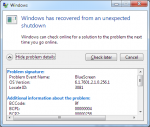
Analysing a Blue Screen of Death (BSOD) crash is not for the feint hearted.  I did some training with Microsoft a few years back that showed me how to do it, but to be honest, I so rarely do it these days that I’m a bit rusty.  My laptop however has had increasing issues over the past week or so and has had a couple of BSOD’s that I figured I’d “get around to looking at real soon now”.  The most recent one happened overnight while I thought it was turned off.  It’s shown below for reference.

image

When a computer BSOD’s, it leaves behind a dump file of the status of the computer.  It’s those files that we need to analyse in order to understand what went wrong, and how we can fix it.  Rather than break out the debug tools, I decided to take another approach.  I employed a tool called Whocrashed to do the analysis of the BSOD DMP file and tell me what went wrong.

Whocrashed is available free for home users from their website here.  They also have a few other tools which look quite cool as well and I’ll check them out later.

Anyway – I downloaded the tool and let it analyse my DMP files.  It took less than a second and came back with the information below.

image

Ok – so I know where it crashed (it reviewed the previous BSODs too and said the same thing).  Now I just need to figure out WHY it’s crashing in that area…

Tags: ,
Posted in FAQs | No Comments »

Cloud Hype – is it just hype?

Saturday, April 21st, 2012

Fellow SBS MVP Tim Barrett has a good post here about how Microsoft believe that 58% of our SMB clients want to move to the cloud as it will make them more competitive.  He goes on to say that many clients are moving to the cloud simply so they won’t get left behind.  Personally I think that there are much better things that customers can do to make themselves more competitive than to simply move to the cloud.  I mean, the cloud is there to service their business needs for IT.  When was the last time that JUST investing in your IT systems alone made you more competitive?  Surely there are other things that clients can do aside from moving to the cloud to make them more competitive?  A client of ours was a world class Rally car company… would moving to the cloud alone make them more competitive?

Be careful people – statistics can be made to say anything you want them to say.  I’m not saying DON’T move to the cloud.  I’m saying (as I have said all along) is to evaluate ALL your business requirements including Cloud solutions, and if it works in the cloud for your business model and I’m not just talking about costs here, I’m talking about the entire business risk analysis, then use the cloud.  If upon reflection of your business options, the cloud poses more risk for you than return, then don’t use the cloud.  But at a very minimum, at least DO A RISK ANALYSIS before deciding to move that business process (email or whatever) to the cloud is the best thing for you.

Tags: ,
Posted in Blog | 2 Comments »

Terminal Server “The requested session access is denied” when you try to login
Friday, April 20th, 2012

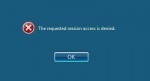
I was working on this issue today with one of our team.  A client reported that they could not login to their Windows Server 2008 Terminal Server from their iPad.  He is using iTap on his iPad.  The error message we kept getting was “The requested session access is denied”.

clip_image002

We verified that we could access the Terminal Server / Remote Desktop server using our Admin account and thought that maybe it was linked to the clients account.  He brought his iPad into the office and we tried the Admin account from the connection he had created.  It worked.  We then thought that we’d try it from a desktop using our admin account – that too worked, but when we tried it with his account it didn’t work.  Strange we thought – I mean we just launched mstsc.exe from the shortcut we had on our desktop…  After a little bit of digging and thought though, it finally clicked.  Access is denied… We checked and found that our shortcut used the /admin switch which meant that it would try to take over the console session on the server.  Given that we got the same message with both the desktop and the iPad, we then checked the iPad to see that it had a similar console option in the iTap configuration.  Changed that and sure enough it worked!

Tags: , , , ,
Posted in Blog | 1 Comment »

What NOT to do with ShadowProtect.

Thursday, April 19th, 2012

Let me start by saying that StorageCraft ShadowProtect is not in the slightest way at fault for the story I’m about to relay.  The customer who should know better is entirely at fault.  Let this be a warning to users of ShadowProtect, that there are things you do not understand and you should not mess with at all.

We’ve got a client at Correct Solutions who has a number of servers in a datacentre (DC).  This is an installation that we setup earlier this year and we’ve got ShadowProtect doing the backups of the virtual servers running on Hyper-V to a local location at the DC.  We are using Continuous Incrementals because they are well suited to allow us to replicate the small incremental files offsite to a DR location that they have. Continuous Incrementals are cool technology because they take one base file and then smaller incrementals after that point.  ImageManager is then used to roll up those small incrementals into consolidated daily, weekly and monthly images.  It’s a cool system really and one I’ve used for a number of years in many client environments.

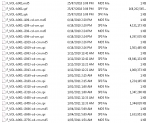
Back to this client, we have ImageManager at the DC that does the image consolidation and replication to the ShadowStream server at the remote DR location and it’s been working pretty well for a number of months.  The files in the DC effectively are replicated to the remote DR site so that we can quickly bring things up should a major event happen.  The client has their own IT Manager handling things on a day to day basis and so we’re called in to help when things are not working.  Yesterday he called up – apparently the ShadowProtect backups are failing on the servers at the DC.  We take a look at it and we find that it looks like a stack of files including the base images are missing from the DC location.  We then check and find a similar (not the same) number of files are missing from the remote location.  This is pretty strange as we only ever replicate the small incremental files from the DC to the DR location and if a file is deleted from the DC location it’s never automatically deleted from the DR location unless ImageManager tells it to be… in which case the files in the DC and DR locations would be identically deleted… which it was not.  Ok – so that means someone or something else deleted the files…  We did some further checking and could see that the client logged onto the DC servers AFTER the 9am backup and BEFORE the 10am backup… the 10am backup was the first one to fail.  The client of course says he did not delete the files at all, but in passing mentions about cleaning old files… CLICK…. Yup – what he did was to look at the files in the backup folder.  Below is a screenshot from one of my own servers that I’ve had using ShadowProtect since mid 2010.

image

You can see the file ending in SPF – it’s the first full backup of this volume – note it’s 168GB in size. The other SPI files are the incrementals or in this case the consolidated incrementals that are the rolled up incrementals for later backups. In order to restore any file from backup, you need the SPF and all the SPI files forward until today. Now – notice the time stamps on the files. The Base SPF file was created on 25th July 2010 – and has not been changed since then. The SPI files have been changed after that to incorporate the consolidation of the incrementals in accordance with the ImageManager plans that I configured. You see the –i109-cd-cm.spi file – it’s not been touched since 6th October 2010 – that’s again due to the consolidation and retention settings I’ve configured.  This is all good and everything works fine.

Back to this customer… what I believe is that he saw that there were a heap of files not touched for some time and he deleted them all… ouch… that is how he broke ShadowProtect.  To make it worse – he ALSO deleted them from the DR site.  Naturally the client denies this entirely, but I’m pretty sure that this is what happened as ImageManager was NOT configured to delete things like the base files etc and I’ve used ImageManager enough to know it won’t mess up like that.

How do we fix it for this client?  Well luckily the solution is simple… delete EVERYTHING and start again with new Base Images (SPF).  Then allow those to replicate to the DR site and everything will be good.  ImageManager needs to be enabled to replicate the base files, but this is a minor config change we can do.  The faster way would be to grab a USB hard drive and copy the Base Images (over 300GB in this case) and then take that to the DR site to seed the DR server.  We’re waiting on the clients decision for this.

Long story short – don’t mess with ShadowProtect SPF and SPI files unless you know EXACTLY what you are doing.  This client has lost his entire backup history for the past 6 months as a result of what he did.  ShadowProtect and ImageManager will handle things just fine for the most part if you leave them well enough alone.  I hope this story can help others better understand WHY some files look like they’ve not been touched and better understand the relationship between the files.

Tags: , , ,
Posted in Blog | 3 Comments »

SMB 150 Announced – I’m on it!

Wednesday, April 18th, 2012

SMBNation have announced the SMB 150 list.  From the total list of over 400 nominations from around the world, they’ve selected via a combination of public vote and a private judging panel, the top 150 SMB influencers and community contributors.  Many people ran large “Elect Me/ Vote for me” campaigns, which whilst funny to watch, made me think of the current US election process… not something I’m all that fond of.  I blogged about my nomination at the beginning and then at the end reminded people of the closing days via my personal Facebook… I know people that really had fun with it and after a while it became a little wearing to see every post from them about the “vote for me” idea…

I’ve been however very happily surprised to see that the organisers of the SMB 150, have taken the public vote as being only 40% of the entire selection process, with the other 60% being a judging panel of SMB industry that should well know the nominated people and their true influence on the community. 

I’m so very honoured to be in the top 150 list and whilst I won’t likely make the award ceremony, will be there in spirit for sure!  Congratulations to all the other awardees!

Tags: , ,
Posted in Blog | No Comments »

Microsoft Announces Windows 8 Versions

Tuesday, April 17th, 2012

Microsoft today announced via a blog post here that there will be a significant reduction in the different versions of Windows starting with Windows 8.  This has got to be a good thing for the marketplace as there was always great confusion between the various versions of Windows 7 and previous OS’s in the past.  

This blog post from Microsoft confirms a few things…  Firstly that Windows 8 will be the official name of the next version of Windows.  That bit is a no brainer really.

The next big thing is that they have simplified is the versions… in the past we’ve had Windows Starter, Home Basic, Home Premium, Professional, Enterprise and Ultimate.  Now we will have Windows 8 and Windows 8 Pro, with an option pack providing the Media Centre extensions “at an economical cost”, and Windows 8 Enterprise.  This is pretty much what the mainstream will use and it give us a simple solution to our clients – we simply tell them to “Go Pro” for anything they need in their business network and we can’t go wrong.

Windows 8 Enterprise will only be available to clients on Software Assurance agreements, with a few extra bits around deployment etc that will make them happy Smile

Microsoft have also announce Windows RT which is a platform spinoff of Windows 8 – it also includes touch optimised versions of Word, Excel, OneNote and PowerPoint.  This version is designed for the ARM processors used in many of the tablet PC’s at the moment.

All in all, this looks like a good compromise and it looks like Microsoft have really listened to the confusion that our feedback around this.  Let’s hope it translates to reality  in the marketplace as well.

I can’t wait to see what they’ve done with the Windows 8 Server versions… I’m really hoping they’ve simplified that a lot too.

Tags: ,
Posted in Blog | No Comments »

How can I allow more than 5 users to VPN into my SBS 2008 or SBS 2011 Standard server?

Monday, April 16th, 2012

By default when the VPN configuration for SBS 2008 and SBS 2011 Standard allows only 5 users to VPN at once.  This is often not enough for the larger network environments.  The question that comes is “How can I increase VPN to allow more than 5 users”.  Fortunately it’s pretty simple.

First up, start with configuring VPN via the SBS console.  To do that, go to the Network Tab and select the Connectivity sub tab.  Then run the “Configure a Virtual Private Network” wizard from the task pane on the right.

image

Select “Allow users to connect to the server by using a VPN” and the VPN wizard will run.

It will configure the Routing and Remote Access services to provide the VPN functionality and if your router has uPnP allowed, it will also configure port 1723 to pass through the router to the SBS server itself.

image

Now that you’ve configured the VPN, you may feel free to test it from outside your network so that you know it works right now.

In order to increase the number of available ports for your remote access / VPN users, you need to open the Routing and Remote Access console.  It’s under the Administrative Tools menu on the Start > Program menu

image

If you select the Ports node from the menu above, you will see it display that it’s already allocated the 5 ports that is the default for the SBS VPN wizard as you can see below.

image

Right select on the Ports node and then select Properties.  You should get the screen below showing you the number of ports defined for the various protocols.

image

Select the WAN Miniport (PPTP) entry and then select the Configure button at the bottom.

You can then change the number of ports to the maximum number of VPN users you will expect.  In the screen below, I’ve changed it to 20

image

Select OK on this screen and then OK again to take you back to the main Routing and Remote Access console.  You should see the number of ports has increased as the screen below shows.

image

Voila – you’ve done it – nothing more to do except sit back and enjoy the 20 users remotely accessing your network now.

Oh – one final word, if you even run the SBS VPN wizard again to disable and then enable VPN, it will reset the ports back to 5.

Tags: , , , ,
Posted in FAQs | 1 Comment »

Why does my server appear under Client Computers on SBS 2008 and SBS 2011 Standard?

Friday, April 13th, 2012

This is one I’ve heard a lot before and it’s easy to solve.

When you add Desktop or Notebook computers to SBS 2008 and SBS 2011 via the http://connect wizard, they get added in and put by default into the Client Computers OU inside Active Directory.  The SBS 2008 and SBS 2011 Standard console displays any computers in that OU under the Client Computers section on the console itself.  The screenshot below show you how this looks.

image

When you add servers to the SBS 2008 or SBS 2011 Standard network, there is no wizard to follow.  As such you add them to the domain in the normal manner.

SBS is configured by default to add any new computer to the domain in the SBSComputers OU as you can see below.

image

The solution is therefore quite simple.  Once you add your Server to the SBS 2008 or SBS 2011 Standard domain, you need to move them into the SBSServers OU using Active Directory Users and Computers.  Run ADUC from the Administrative tools group.  Select the computers you wish to move and drag them into the SBSServers OU as you can see I’m doing below.  You will get a warning also as below – select Yes to continue.

image

Once they are moved it will look like this.

image

If you refresh the SBS console then it will all appear like it should as you can see below.

image

Tags: , , ,
Posted in FAQs | No Comments »

Windows 8 Virtual Machine on Hyper-V 2008 R2 Host

Thursday, April 12th, 2012

If you are running a Windows 8 VM on your Hyper-V 2008 R2 host, then you really need to check out this blog post.  It turns out that there can be some issues with the Windows 8 VM if you don’t have the patch and it’s likely that most people will be testing Windows 8 on Windows Server 2008 R2 hosts as I have been. Note that Microsoft state that this is a REQUIRED hotfix, therefore it gives you an idea of how critical they see this issue.

Tags: , , ,
Posted in Blog | No Comments »