Microsoft last week released the latest Update Rollup for Exchange 2007 SP3. This is Rollup 4 for Exchange 2007 Service Pack 3 (SP3) and contains a host of fixes that have been released since SP3 for Exchange 2007 was released. Microsoft made the announcement here. The complete list of fixes for the patch is available here. Microsoft also advised that they will be releasing Update Rollup 5 for Exchange Server 2007 Service Pack 3 in August 2011 which is good guidance for when you need to apply this next.
Ok – so how do we apply Rollup 4 for Exchange 2007 SP3 on SBS 2008? Well first up – I’ve applied this to my test server first – and from what I can see there’s been no side effects. The next test for me is to apply it to my production environment, and then later in the week I’ll apply it to customer environment.
To install Rollup 4 for Exchange 2007 SP3, you must of course have Service Pack 3 for Exchange 2007 installed first. If you don’t then check out this blog post I did a while back on this subject.
Next you need to download Update Rollup 4 from Microsoft – the direct download link is here – of course you will want the x64 version. Download it and save it to the desktop.
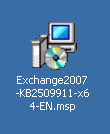
Once on the desktop – make sure that your users are disconnected from the server – I normally do my patches on a Sunday night if I can – that way I’m ready to assist on Monday morning should there be any issues.
Make sure you have done a backup of the server before you apply the patch and also I normally disable any Antivirus Software as well so that it can’t get in the way.
Right click on the download and select Apply.
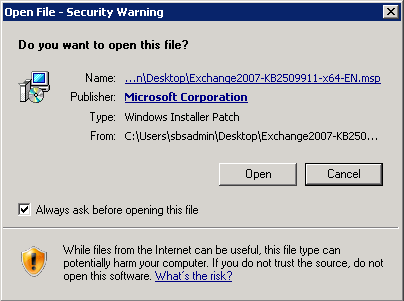
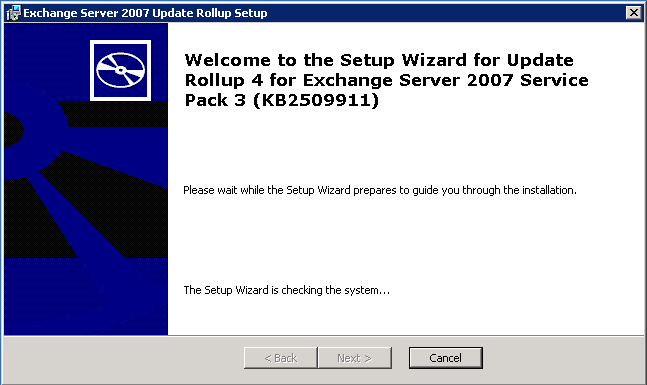
You will get the GUI that does some pre-requisite checking first – nothing to do here except wait for it to do it’s thing.
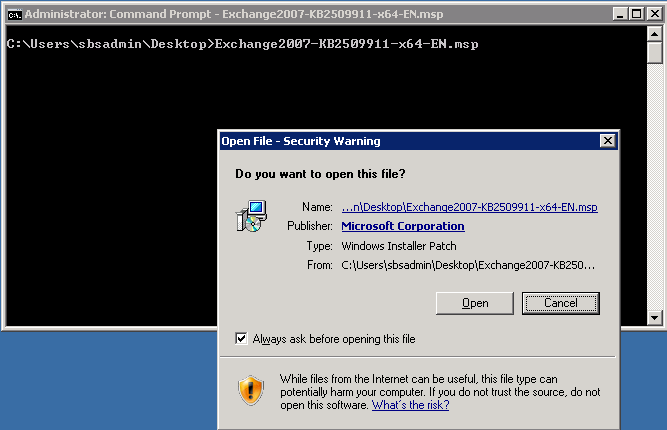
Opps – forgot I needed to run this from an administrative command prompt. Select OK to clear this box

Start a Command Prompt with Administrative Privileges and then run the Update Rollup from that prompt.
Ok –so it’s running better this time…

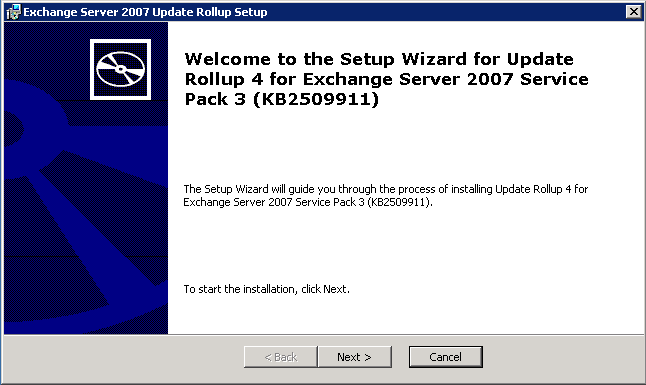
Select Next to continue.
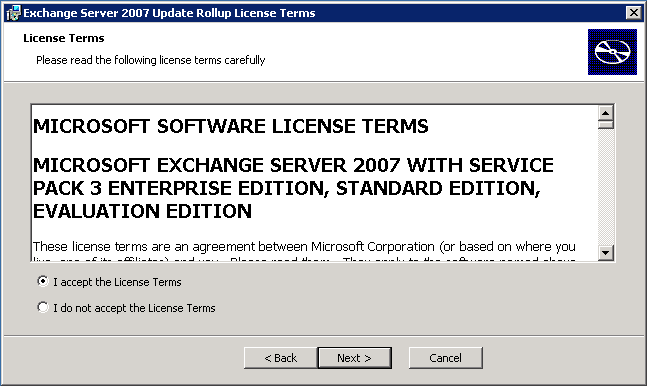
Yes – you really mist accept the license terms and then select Next to continue.
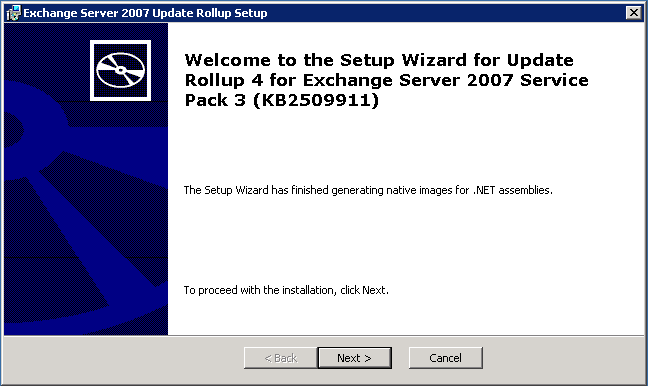
Now the fun part… in the past, Exchange waits until after it’s gotten everything done then it stops the services and compiles the .NET assemblies – this means that users are off the air for longer than they need to be. Starting with this Rollup, the Exchange Team now have the update do the compilation of the .NET assemblies BEFORE it goes to stop the services etc. This should result in less downtime for the users…. I say it SHOULD result in less downtime  Nothing to do at this point but wait… and wait… oh and wait.

Ok – that took about 8 minutes on my production Hyper-V server – but it’s done with that. Select Next to continue.
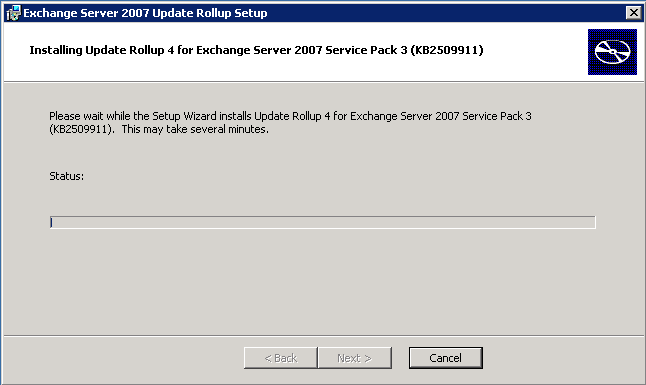
Now it’s busy stopping services – at this point your users may notice emails queuing in their outbox and the Outlook client will go into it’s disconnected state – that is to be expected.
Ok – we’re copying files now… good progress.
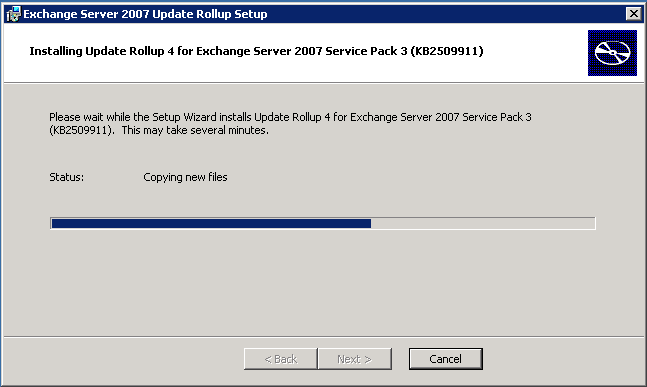
Now it’s doing more compiling – the thing I like about this screen is that it SHOWS what it’s doing – note the name of the DLL it’s working on – I’m sure that will make life easier should it stall during the installation. Well done Exchange Team.

Almost done now – and I guess it’s a good sign!
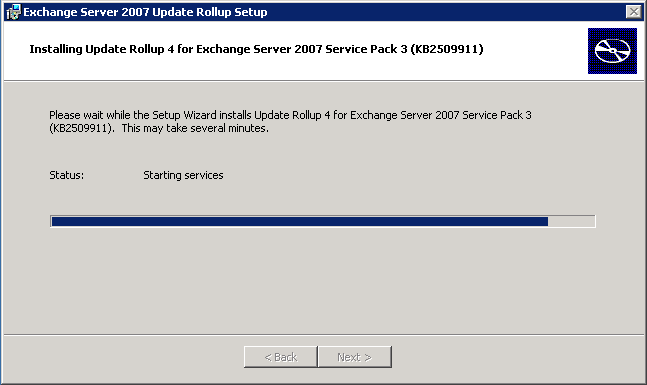
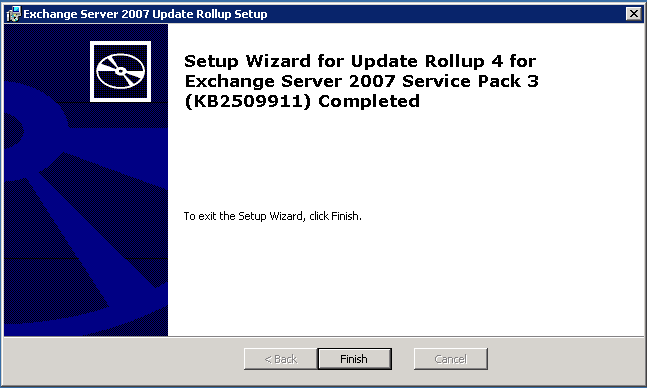
Woohoo – all done. All up it took around 40 minutes on my virtualised SBS 2008 server to apply this.
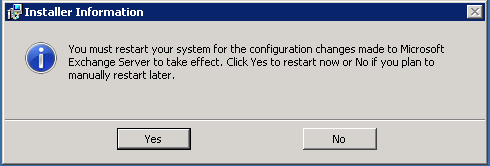
Now of course for the obligatory restart of the server
Once it’s back up – of course you are going to test it out to ensure that everything is working fine (which it was on my server).
Brill, thanks for that, just installed rollup 8 without any drama. It never fails to amaze me that Microsoft still think that we’re all telepaths (re: running from an administrative command prompt)!
Hello, I think your blog might be having browser compatibility issues.
When I look at your blog in Firefox, it looks fine but
when opening in Internet Explorer, it has some overlapping.
I just wanted to give you a quick heads up! Other then that, very good blog!
This website certainly has all of the info I wanted concerning this subject and didn’t know
who to ask.
Do you mind if I quote a couple of your posts as long as I provide credit and sources back to your blog?
My blog site is in the exact same niche as yours and my visitors would
really benefit from some of the information you present here.
Please let me know if this ok with you. Thank you!
Write more, thats all I have to say. Literally, it seems as
though you relied on the video to make your point. You
obviously know what youre talking about, why waste your intelligence on
just posting videos to your weblog when you could be giving us something enlightening to read?
My webpage; Panasonic Rugged Tablets – Etsuko,
amazing insight. Really enjoyed reading this blog.
Keep up the good work and to everyone keep on learning!
My website tarot amour gratuit
amazing insight. Really enjoyed browsing this blog.
Keep up the good work and to everyone keep on tweeting!
Also visit my page :: how to get more followers on twitter
(youtube.com)
As a jungle he is one of my favorite pick due to
his bandage toss ability where you close the distance between
you and enemy champions. last hitting with the champion you want to improve
with. What assists is the number of weapons and strategy, which is often, got making
use of riots.
Feel free to surf to my blog post :: lol rp codes free, Fidel,
wonderful insight. Really enjoyed skimming through this
blog. Keep up the good work and to everyone keep on learning!
My website … psn code generator free download,
Leonel,
amazing insight. Really enjoyed reading this blog. Keep up the good
work and to everyone keep on tweeting!
Feel free to visit my web-site :: comment avoir plus de followers
Hello there! This is my first comment here so I just wanted to give a
quick shout out and tell you I genuinely enjoy reading
through your articles. Can you suggest any other blogs/websites/forums that go over the
same topics? Thanks!
Hey! I know this is kind of off topic but I was
wondering if you knew where I could find a captcha plugin for my comment form?
I’m using the same blog platform as yours
and I’m having trouble finding one? Thanks a lot!