StorageCraft has recently released ShadowProtect 4.2.1 on their download site. This upgrade is a little different to most in that there’s a few things to watch out for. firstly, you can only upgrade to 4.2.1 if you are already on 4.1.5. If you are not on 4.1.5 then you need to remove and reinstall ShadowProtect and reconfigure the jobs etc.
Download the update from here
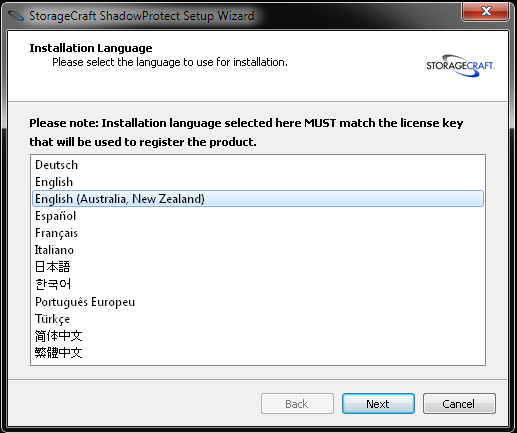
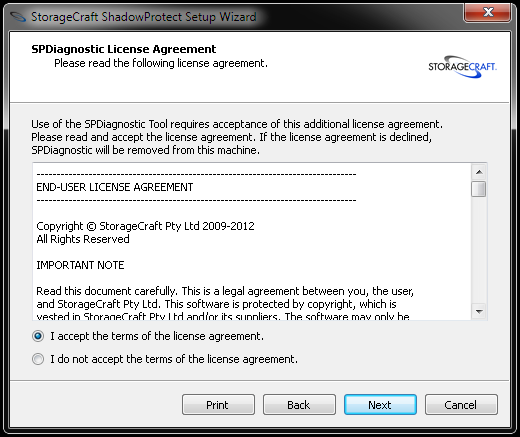
Extract it to your desktop and run the upgrade. Chose your location. The Australia/New Zealand location is identical to the English option except that it will give you the option to run SPDiagnostics which is a great utility that the AU/NZ Storagecraft guys put together that really helps diagnose issues that will potentially prevent your ShadowProtect installation from working correctly.
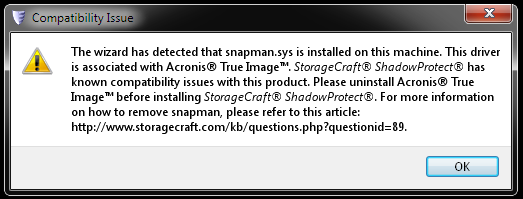
On one of my systems, it warned me that I had some files hanging around from using Acronis TrueImage. The StorageCraft KB article was helpful in resolve that and I could then proceed.
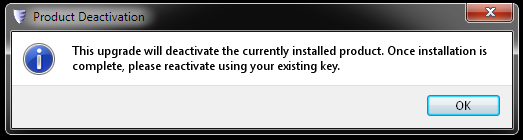
You get warned in advance that the upgrade will need you to reactivate your ShadowProtect installation. Make sure you have your keys handy. If you don’t – that’s ok – it will go into the 30 day trial mode.
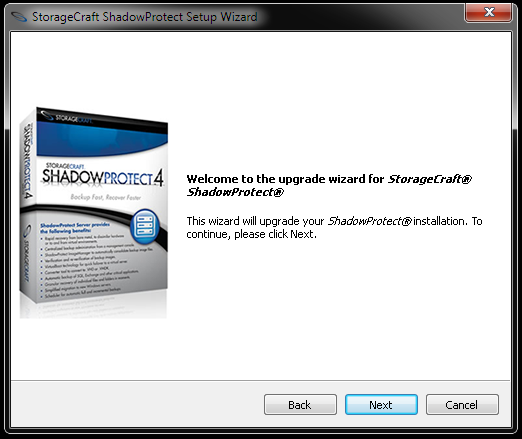
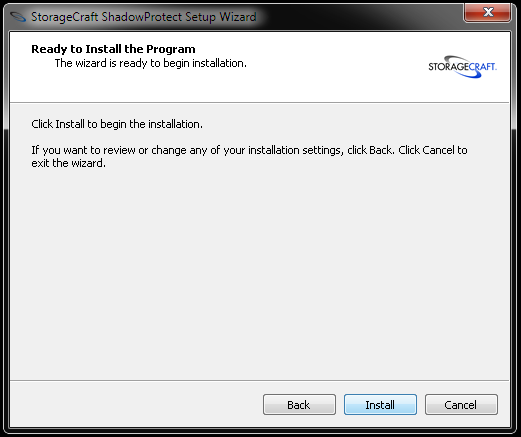
The installation is pretty much a follow the bouncing ball install after this point, so check out the screenshots below.
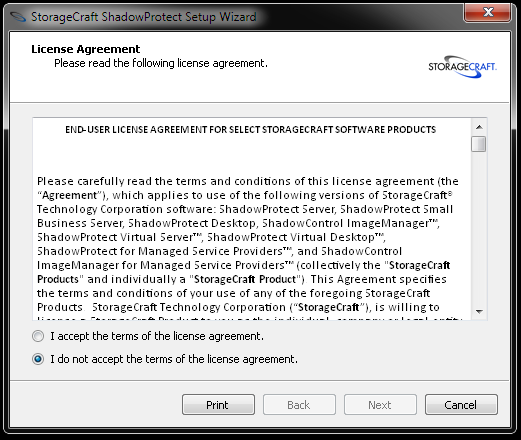
You only get this next screen if you install the Australian/New Zealand version
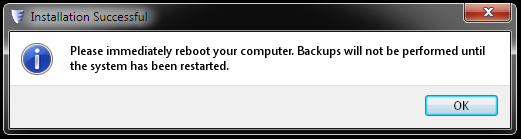
You WILL reboot – seriously – you WILL!
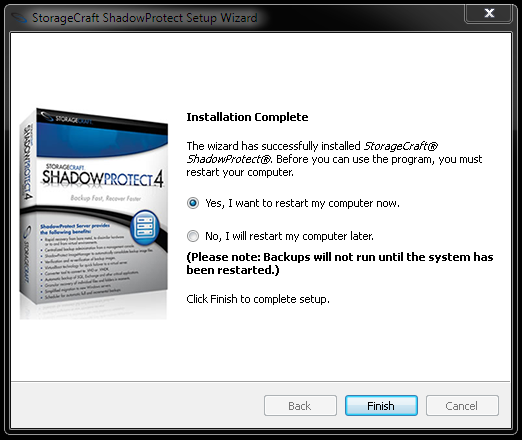
After the reboot, you will need to run ShadowProtect to activate it once more.
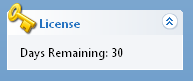
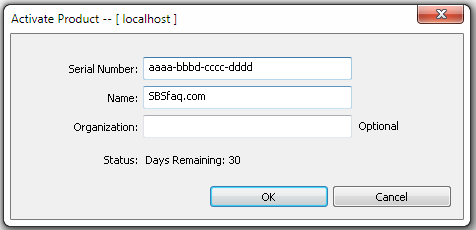
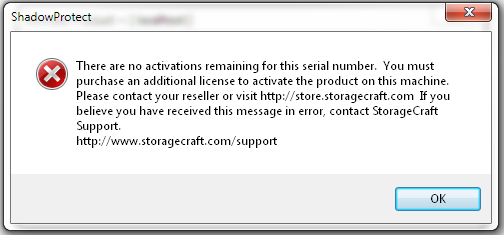
On one of my systems I had an activation issue – this was due to me decommissioning a system in the past without deactivating it at all. StorageCraft were most obliging in helping resolve this for me.
Activation success!

Based on my experience, the upgrade takes less than 10 minutes plus a reboot and reactivation. There was one scenario however on my Hyper-V server where ShadowProtect was installed on the Hyper-V base that it took over 40 minute to do the upgrade – not sure why, but it did.
It’s fantastic that you are getting ideas from this article as well as from
our dialogue made here.